
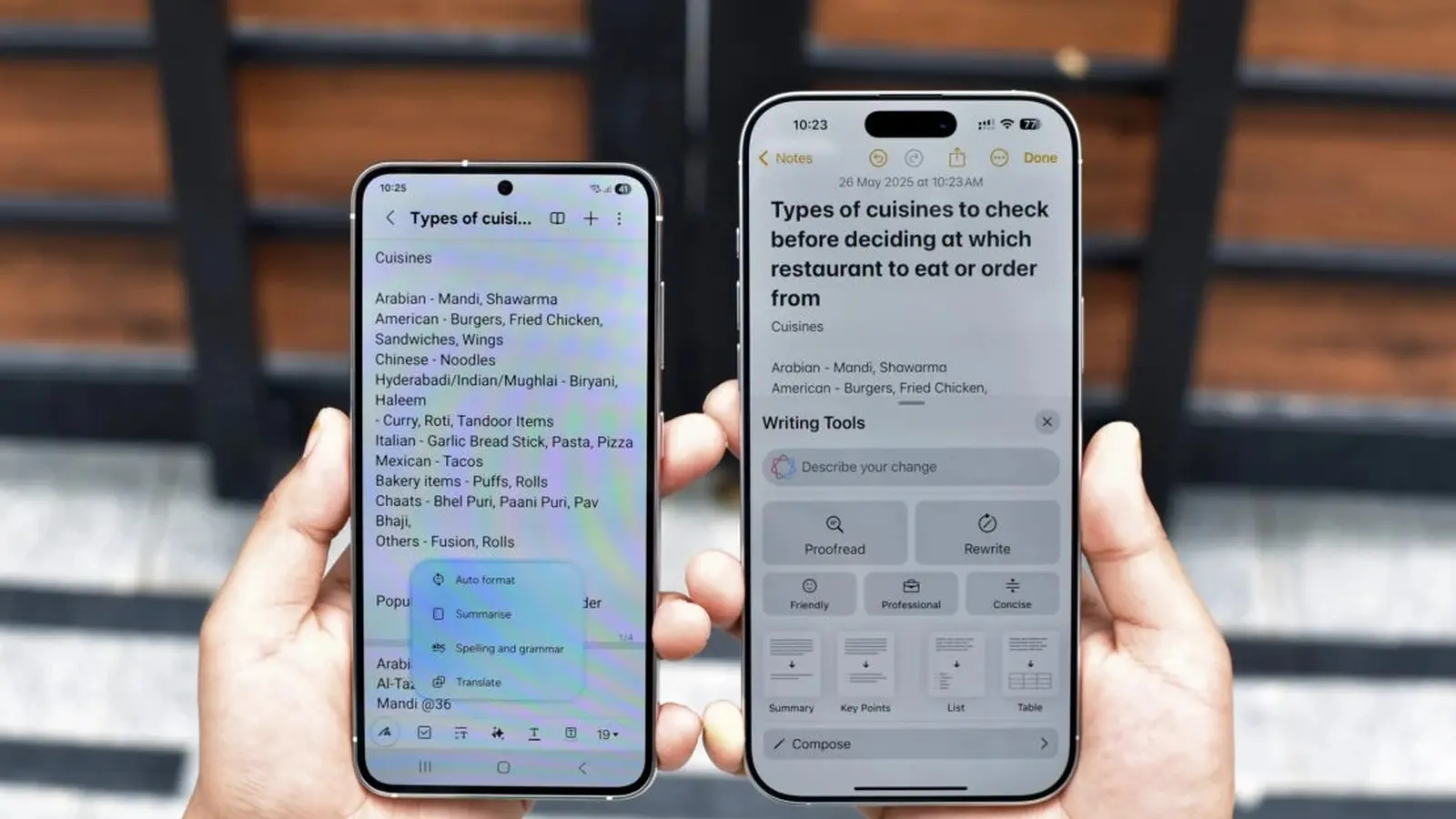
Ever pasted some text into a note and watched the formatting fall apart? Samsung has pushed a tidy little update that aims to stop that annoyance in its tracks. The Samsung Notes app on Galaxy phones is moving to version 4.4.41.9 and brings three practical additions that feel more helpful than headline-grabbing.
First up: Match style when pasting. Turn it on and any text you paste will automatically adopt the look of the surrounding content — font, size, and general formatting follow the insertion point. It’s deceptively simple. Copy a paragraph from a webpage, paste it into a long-form entry, and the app normalizes it so your note doesn’t look like a patchwork quilt. You’ll find the toggle under Settings > Advanced > Match style when pasting.
Next: Group by date, found in the Sort by menu. Instead of a flat list, your notes can be clustered by day, week, or month depending on how you browse. For anyone who treats their note list like an inbox, this is a small organizational rethink that pays off: faster hunting, fewer duplicates, and less scrolling through relics from last year.
 |  |
The final change targets one of the most common workflows on a Galaxy device — dealing with PDFs. Samsung added an Import PDF shortcut to the long-press menu on the Create Note button, and it’s also accessible from the top-right menu when viewing notes. Tap it and you can pull a PDF into Notes for annotation, markup, or reference without detouring through other apps.
These tweaks don’t reinvent the wheel. But they smooth rough edges that get in the way of quick, real-world work: consistent formatting when pasting, clearer chronological organization, and faster PDF handling. For power users and casual note-takers alike, the update nudges everyday productivity in the right direction.
To get the new features, open the Galaxy Store, tap Menu > Updates, then update Samsung Notes (or choose Update all).
Try the new tools and see which one changes your routine first. Which feature do you need right now?


Leave a Comment
Comments
No comments yet. Be the first.